How to Quickly Remove White Backgrounds
After finding a bunch of "free" webapps that failed to remove the white background from a map I was using for one of my DnD games,[1] I found a short guide on removing the background with GIMP. I use GIMP in spurts, so while I may have known how to do this before, I definitely forgot.
If you have not downloaded GIMP, you can get it straight from the GIMP website. Alternatively, you could use Ninite if you're on Windows, or use the Linux App manager or Flatpak.
Removing the Background
- Open image as layers
- File>Open as Layers...
- Keyboard shortcut: Ctrl+Alt+O
- File>Open as Layers...
- Select, filter, and delete background
- Select the
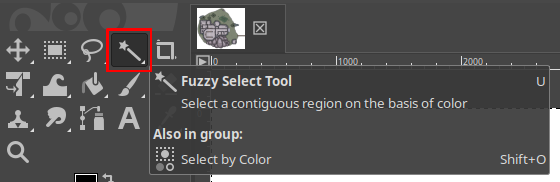
Magic WandFuzzy Select Tool from the tool panel on the left - Click on the white background you want to select
- Let it think for a bit
- Add an Alpha Channel to the selected area
- Layer>Transparency>Add Alpha Channel
- Delete the selected area
- Delete key
- Select the
- Change image mode from Indexed to RGB
- Optional: This is highly recommended if you are working with an image someone exported from PhotoShop, GIMP, or similar which may have more complex file information.
- Failure to do so may result in a PNG image error, and an export without a transparent background.
- Likely unnecessary if you're using a screenshot or other similarly "flat" image.
- Image>Mode>RGB
- Optional: This is highly recommended if you are working with an image someone exported from PhotoShop, GIMP, or similar which may have more complex file information.
- Export as PNG
- File>Export As>Export
- The defaults are fine, but feel free to experiment or make changes
- File>Export As>Export
Troubleshooting
- ERROR: PNG image Message: Couldn't losslessly save transparency, saving opacity instead.
- Cause: This is probably because you're working on a file directly exported from an image editor, and it may have complex file information
- Solution: Change the image mode to RGB (Image>Mode>RGB), and try again.