DisplayLink Drivers on Linux are Busted
tl;dr
Problem
You are using a computer running some flavor of Debian Linux and have decided to use a DisplayLink adapter for video output. If the DisplayLink adapter is connected at startup, your computer hangs for several minutes while loading Linux, and some services, applications, and/or drivers fail to load properly.
Patch
In the file /opt/displaylink/udev.sh, modify the “start_service” section to read systemctl start --no-block displaylink-driver. Save the file and restart; you should not experience the issue again, or at least until DisplayLink releases an update that reverts your changes.
Dive Deeper
The Problem
You are using a computer running some flavor of Debian Linux and have decided to use a DisplayLink adapter for video output. If the DisplayLink adapter is connected to the computer during startup, the computer hangs for several minutes while loading Linux, and some services, applications, and/or drivers fail to load properly.
- In my case, I was running Linux Mint with a USB 3.0 to Dual HDMI DisplayLink adapter I bought from a site that rhymes with “Scamazon.”
- In your case, this could theoretically apply to any Ubunty or Debian based OS, and the DisplayLink adapter might be a USB-C docking station or one of the many USB to HDMI and DisplayPort adapters you can buy.
- Before using the adapter, my computer would boot in less than 20 seconds; it has a small M.2 SSD for its boot drive and a low-voltage 4th-gen Core i7 CPU. With the DisplayLink adapter plugged in, the system would hang for a few minutes, long enough to step away and brew a cup of coffee.
- I wasn’t particularly bothered by this, except that it also caused some services not to start correctly. For example, my 1TB ZFS pool failed to load. Disconnecting the DisplayLink adapter and restarting the computer allowed the ZFS pool to start up correctly.
The Patch
Note: I did not come to this solution on my own, but found it here on this post. It took me a little effort to find it because my situation doesn’t exactly match the OPs, so I wanted to write this post with the hope that it’s more searchable. OP had a Lenovo USB-C hybrid dock, but I just had a generic adapter. Anyway, here’s what you do:
-
Open the udev file with Nano (or your preferred editor; for this tutorial, we’ll use Nano)
- Open Terminal, and change your working directory to the DisplayLink driver folder in opt with this command:
$ cd /opt/displaylink
- Type in “ls” to show all the files in your current folder; you should see a file named “udev.sh”
- Because this is a system file, you will need to run Nano as an administrator with “sudo” to edit the file.
$ sudo nano udev.sh- TIP: While typing in the file name, you can hit “tab” to cycle through the files that match what you’ve typed so far. If there’s only one file that starts with “ud”, hitting tab will fill in the rest.
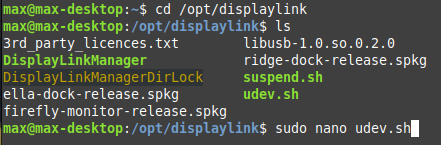
- Open Terminal, and change your working directory to the DisplayLink driver folder in opt with this command:
-
Add “
--no-block” to the start service command and save the file.- Scroll to the bottom, and look for the “start_service” section, and add the switch “
--no-block”- It should look like this: “
systemctl start --no-block displaylink-driver“
- It should look like this: “
- Once you’ve made the change, hit Ctrl+X on your keyboard to exit and save the file
- You will be prompted to save your changes; enter Y to save the changes, then hit the “Enter” key to confirm the file name “udev.sh” (don’t change it).
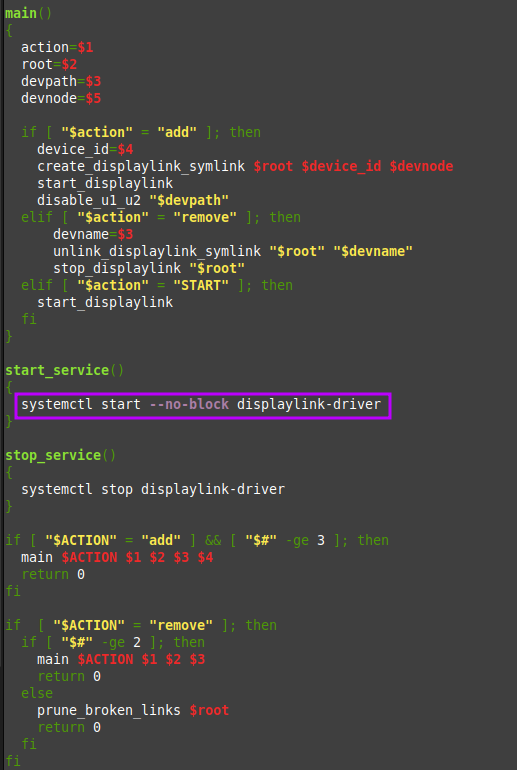
- You will be prompted to save your changes; enter Y to save the changes, then hit the “Enter” key to confirm the file name “udev.sh” (don’t change it).
- Scroll to the bottom, and look for the “start_service” section, and add the switch “
-
Restart the computer and cross your fingers.
- If the Linux Sprites are pleased with your supplication, then your computer will boot up like normal and everything will be fine!
Further Thoughts
From what I can see on Synaptic’s support forum and the Linux Mint forum post earlier, this is a problem that’s been around since at LEAST September 2020. I’ve been thinking about writing this post since about June of 2023, but I was recently spurred to action because DisplayLink released a new update in August that wiped out the patch, causing my system to fail to boot properly. If you also ran into problems with DisplayLink’s Linux drivers, I hope this helps you get back up and running!